Views: 0 Author: Site Editor Publish Time: 2026-07-13 Origin: Site
A fiber connection can still produce weak Wi-Fi, inactive voice service, or disappointing speeds when the ONU/ONT is incompatible, poorly placed, or incorrectly configured. Because a modern fiber ONT modem may also handle routing, Ethernet, Wi-Fi, IPTV, and telephone services, setup choices affect far more than basic internet access. The following steps show how to confirm ISP compatibility, connect and activate the device, configure a WiFi 6 ONT router for home or business use, and identify whether a fault comes from the optical link, network settings, or wireless coverage.
Before connecting a new ONU/ONT, confirm whether the access network uses GPON, EPON, or an XPON environment that can recognize either mode. A compatible connector is not enough: the terminal must communicate with the provider’s optical line terminal and be authorized on that system. Data, video, and voice services may be provisioned separately, while OMCI and TR-069 can support device configuration and remote management.
Ask which activation data is required. Depending on the deployment, this may include the ONU serial number, LOID, registration password, PPPoE credentials, VLAN IDs, DHCP settings, or a static IP assignment. A unit can detect optical power yet remain offline because its identity or service profile has not been accepted. Record existing parameters before replacing an operator-supplied terminal, particularly when IPTV or VoIP uses separate VLANs.
Gateway mode suits most homes and small offices. The WiFi 6 ONT router terminates fiber, performs NAT, assigns local addresses through DHCP, and supplies wired and wireless access. Fewer devices generally make installation and troubleshooting easier.
Bridge mode is better when an existing router or firewall must control PPPoE, VPNs, security policies, or port forwarding. The ONU/ONT passes the service downstream instead of routing it locally. Avoid leaving both devices in gateway mode unless double NAT is deliberate, because it can disrupt inbound connections, remote access, gaming, and some VPN applications.
Count wired endpoints and identify optional services before choosing hardware. A POTS interface is required when the same device must provide telephone service, while businesses may also need multiple SSIDs, VLANs, QoS, mesh support, IPv6, remote management, or USB connectivity.
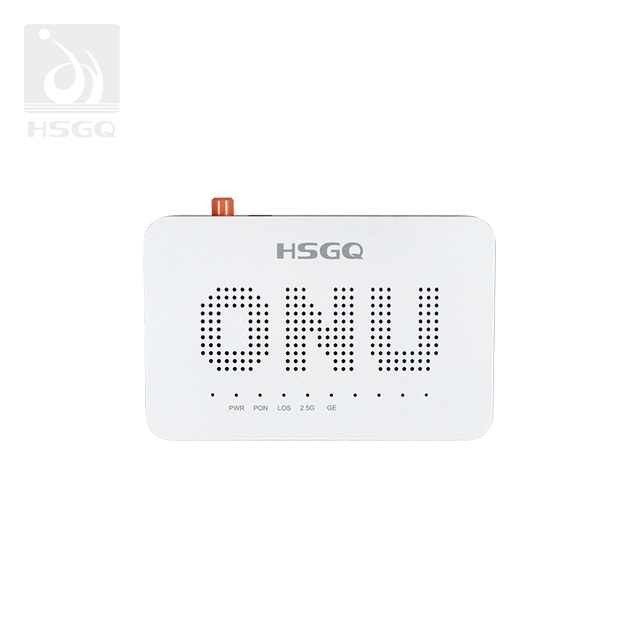
The HSGQ-X400AXF combines four Gigabit LAN ports, AX3000 dual-band Wi-Fi, adaptive GPON/EPON operation, multiple SSIDs, EasyMesh, OMCI, and TR-069 support. The HSGQ-X411AXF adds one POTS port and one USB port for sites that also require voice or peripheral connectivity.
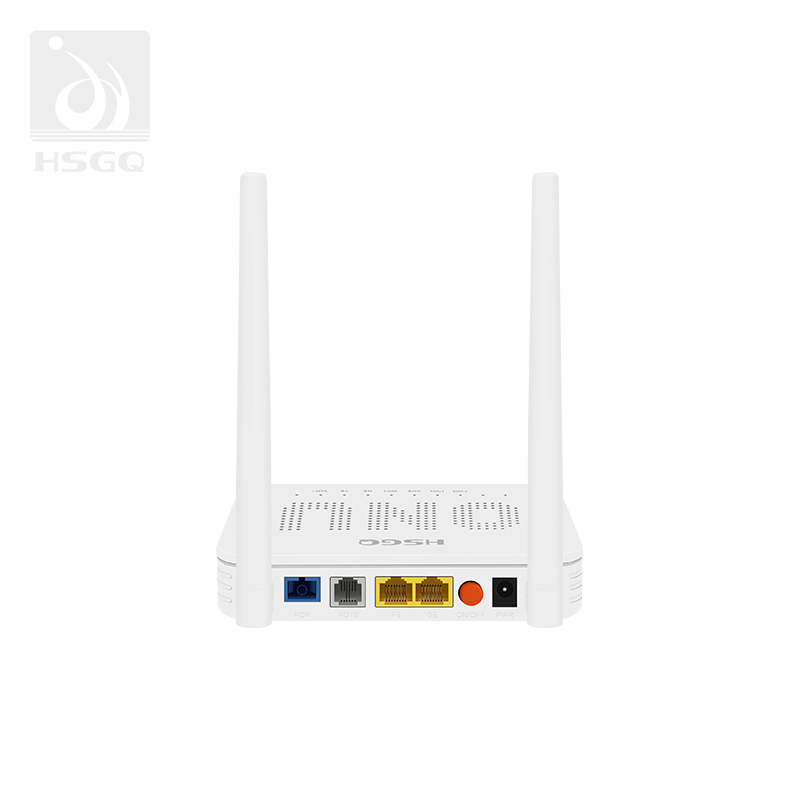
Place the ONU/ONT in a dry, ventilated location with enough space for the fiber cable to curve gently. When it also serves as the main wireless router, do not hide it inside a metal cabinet or behind large appliances. A central, elevated position gives both radio bands a clearer path to client devices.
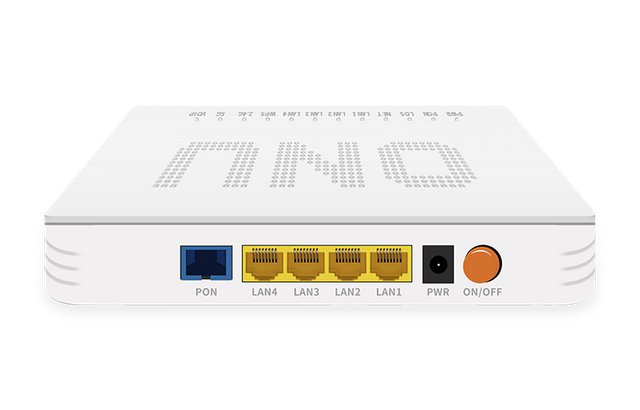
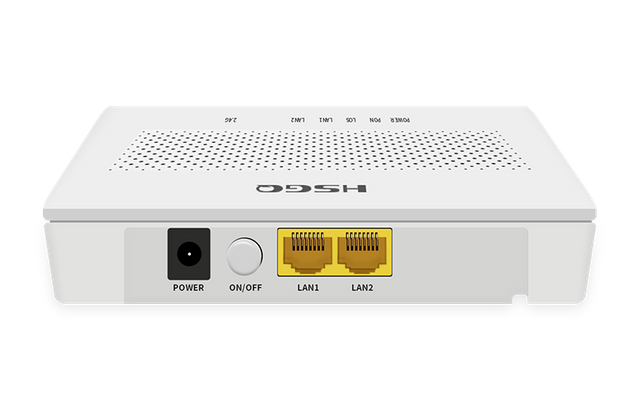
Keep the protective cap on the connector until installation, never touch the polished end, and avoid sharp bends, crushing, or twisting. Insert the SC/APC connector into the PON port, connect a computer to a Gigabit LAN port, and attach a telephone to POTS when voice service is included. Connect the specified power adapter last, then allow the unit to initialize. Offices dependent on VoIP, payment systems, remote access, or cloud applications should consider a UPS for the ONU/ONT and downstream equipment.
Read the indicators before opening the management interface. Behavior varies by model and firmware, but POWER confirms electrical input, PON normally reflects registration, and LOS warns that the optical path is missing or outside its acceptable range. LAN or GE lights show Ethernet activity, while Internet, NET, and VoIP indicators usually reflect configured services rather than basic fiber continuity.
Do not change SSIDs or WAN profiles while LOS remains active or PON registration is incomplete. Reseat the connector, inspect the lead for tight bends, and verify that the provider activated the correct serial number or LOID. If registration still fails, the fault may be upstream, provisioning-related, or caused by OLT incompatibility; repeated Wi-Fi resets will not solve it.
Basic activation sequence:
Connect fiber → Power on → Check LOS → Confirm PON registration → Connect by Ethernet → Open the management interface
Use a wired computer for initial configuration so wireless changes do not interrupt the session. Sign in with the supplied management address and create a WAN profile that matches the service. PPPoE requires account credentials, IPoE usually obtains an address through DHCP, a business circuit may use a static IP, and bridge mode passes the connection to another router.
Enter VLAN IDs only when the provider specifies them. Internet, IPTV, and voice may use different VLANs and port bindings, so combining them can leave one service inactive even when browsing works. In gateway mode, enable NAT and DHCP and choose a subnet that does not conflict with another router. In bridge mode, transfer PPPoE, NAT, DHCP, firewall, and DNS duties downstream. Back up the configuration after all ordered services are working.
Enable 802.11ax while retaining compatibility for older clients where required. Wi-Fi 6 is designed to improve efficiency in busy networks rather than only increase the theoretical peak rate. OFDMA divides channel resources among transmissions, while MU-MIMO helps a compatible access point communicate with several clients more efficiently. These capabilities improve aggregate performance when many connected devices compete for airtime.
Use 2.4 GHz for longer reach, IoT equipment, and locations where walls weaken higher frequencies. Reserve 5 GHz for laptops, phones, televisions, video meetings, and other higher-throughput traffic. A combined SSID simplifies band selection and roaming, while separate names give administrators more control during troubleshooting.
Replace the default administrator password, SSID, and wireless passphrase. Use WPA3-Personal where supported, or WPA2-AES or a suitable WPA2/WPA3 transition mode for older equipment. Keep firmware current and begin with automatic channel selection, changing channels only when tests confirm persistent interference. Default credentials should be replaced during setup, and automatic firmware updates should be enabled where available.
Assign stationary high-demand devices to Ethernet when cabling is convenient. A television, desktop, console, or network storage device does not need mobility, and a wired link frees wireless airtime. Phones and laptops can use 5 GHz, while sensors, smart plugs, and many cameras remain on 2.4 GHz.
Create a guest SSID so visitors do not join the trusted LAN. Where isolation controls are available, a separate IoT network can limit access between smart devices and personal computers. Mesh nodes or additional access points should address a measured coverage gap rather than compensate for poor placement.
The HSGQ-X400AXF provides four Gigabit LAN ports, AX3000 Wi-Fi, multiple SSIDs, automatic channel selection, and EasyMesh support. This combination allows wired devices, everyday wireless clients, guest access, and broader coverage to be handled within the same home network layout.
A business should not place employees, visitors, voice devices, payment terminals, cameras, and building systems on one unrestricted SSID. Create separate networks and map them to VLANs where supported. Guest traffic should reach the internet without reaching internal resources, while operational equipment should receive only the access needed for its role.
Apply QoS to voice, video meetings, and other latency-sensitive applications, but do not use QoS as a substitute for sufficient bandwidth or access-point capacity. Disable unused ports, remote-management services, default accounts, and legacy security modes. Document WAN profiles, VLAN IDs, SSIDs, subnets, passwords, and port assignments.
Where one unit must provide fiber access, routing, Wi-Fi, Ethernet, and telephone service, a voice-capable terminal reduces device count. The HSGQ-X411AXF provides four Gigabit LAN ports, POTS, USB, AX3000 Wi-Fi, and OMCI/TR-069 support, making it suitable for small offices and multi-service FTTH deployments.
Start with a computer connected directly to a Gigabit LAN port. Confirm that it receives a valid IP address, gateway, and DNS server, then measure download speed, upload speed, and latency. Compare the result with the subscribed plan, PON profile, port limit, and network adapter. An AX3000 rating does not mean every client receives that rate, and a Gigabit port cannot deliver multi-gigabit throughput to one wired device.
Evaluate Wi-Fi only after the wired service works normally. Test near the ONU/ONT on 5 GHz, repeat the measurement in the main working area, and finish at the edge of the required coverage zone. This sequence separates optical or WAN faults from interference, weak signal, client limitations, and poor placement. Use the same test device because phones and laptops may support different channel widths and antenna configurations.
Avoid a factory reset until registration credentials, VLANs, WAN profiles, and voice settings have been saved. Resetting may erase provider-specific data and turn a partial fault into a complete outage. Escalate the issue when optical registration fails, required credentials are unavailable, or the OLT must be changed remotely.
The WiFi 6 vs WiFi 7 decision should come after the connection is stable. Wi-Fi 6 remains practical for homes and small businesses using Gigabit Ethernet, mixed-generation clients, and ordinary cloud, streaming, or conferencing workloads.
Wi-Fi 7 is more relevant when compatible clients, multi-gigabit Ethernet, high local-transfer demand, or very dense usage can benefit from wider channels and higher aggregate throughput. It supports features such as 320 MHz channels, but the entire network path must support them. A newer wireless standard will not fix weak optical power, failed registration, an incorrect VLAN, poor placement, double NAT, or a Gigabit bottleneck.
A reliable ONU/ONT setup depends on matching the PON standard, registration method, operating mode, and wireless settings to the actual site. Testing Ethernet before Wi-Fi also makes it easier to separate fiber, configuration, and coverage problems. Shenzhen HS Fiber Communication Equipment CO., LTD. offers WiFi 6 ONU/ONT products that combine fiber access, routing, dual-band wireless connectivity, Gigabit Ethernet, and optional voice interfaces. These integrated functions can reduce device count, simplify home or small-business deployment, and provide a clearer path for managing users, wired equipment, and future network expansion.
A: Not always. An integrated WiFi 6 ONT router can provide routing and wireless access. A separate router is useful for advanced firewall, VPN, or network-management features.
A: Connect the fiber and power, confirm PON registration, log in through Ethernet, enter the ISP’s WAN or VLAN settings, then configure Wi-Fi bands and security.
A: A normal PON light confirms optical registration only. Check PPPoE credentials, DHCP, VLAN IDs, DNS, and service bindings, or contact the ISP for provisioning support.
A: Use bridge mode when another router should manage PPPoE, NAT, DHCP, firewall rules, or VPNs. The ONU/ONT then passes the connection downstream without routing it locally.
A: Wi-Fi 6 suits many Gigabit homes and small offices. Wi-Fi 7 is more useful when compatible clients, multi-gigabit ports, and demanding workloads can use its wider channels.