Views: 0 Author: Site Editor Publish Time: 2026-10-20 Origin: Site
As fiber-to-the-home networks rapidly expand worldwide, Internet Service Providers and network engineers rely on efficient, easy-to-manage optical network terminals (ONUs/ONTs) to deliver seamless broadband services. Designed with user-friendly operation in mind, HSGQ’s intuitive Web Graphical User Interface (Web GUI) allows operators and subscribers to easily set up, manage, and optimize their network connections without complex technical procedures.
Navigating through the Web GUI is straightforward and highly efficient. From initial WAN connection setups and dual-band Wi-Fi parameter configurations to VoIP SIP settings and real-time client management, the HSGQ web portal provides complete control over your home or office network. In this step-by-step guide, we will walk you through the primary management modules—including the advanced Nearby Wi-Fi spectrum analysis tool—helping you get the best performance out of your HSGQ broadband equipment.
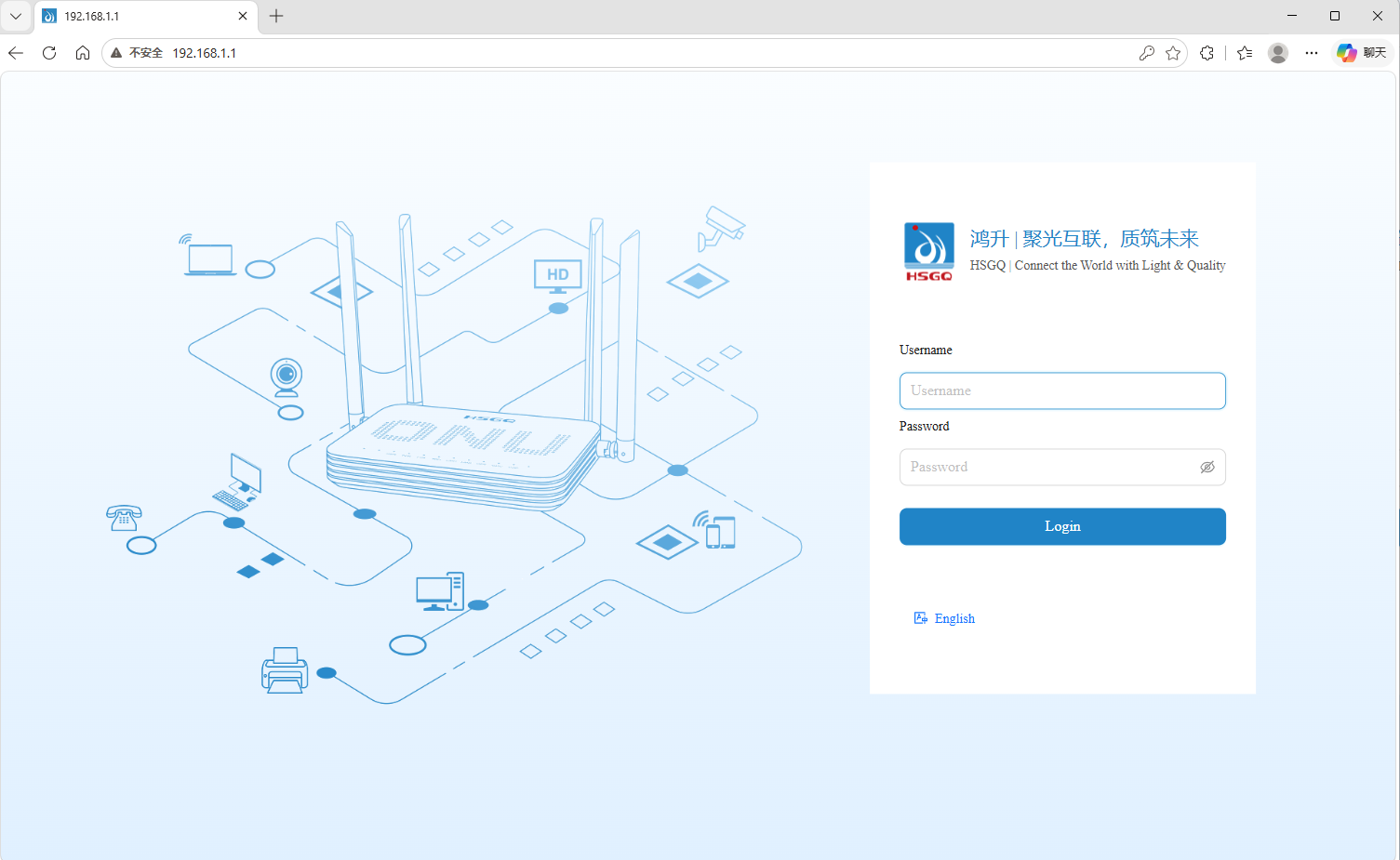
Step 1: Login Page
Access the administration interface: Enter the default management IP address (typically 192.168.1.1) into your browser's address bar to reach the login page.
Authentication: Enter your administrator username and password (e.g., "telecomadmin") into the respective fields, then click "Login."
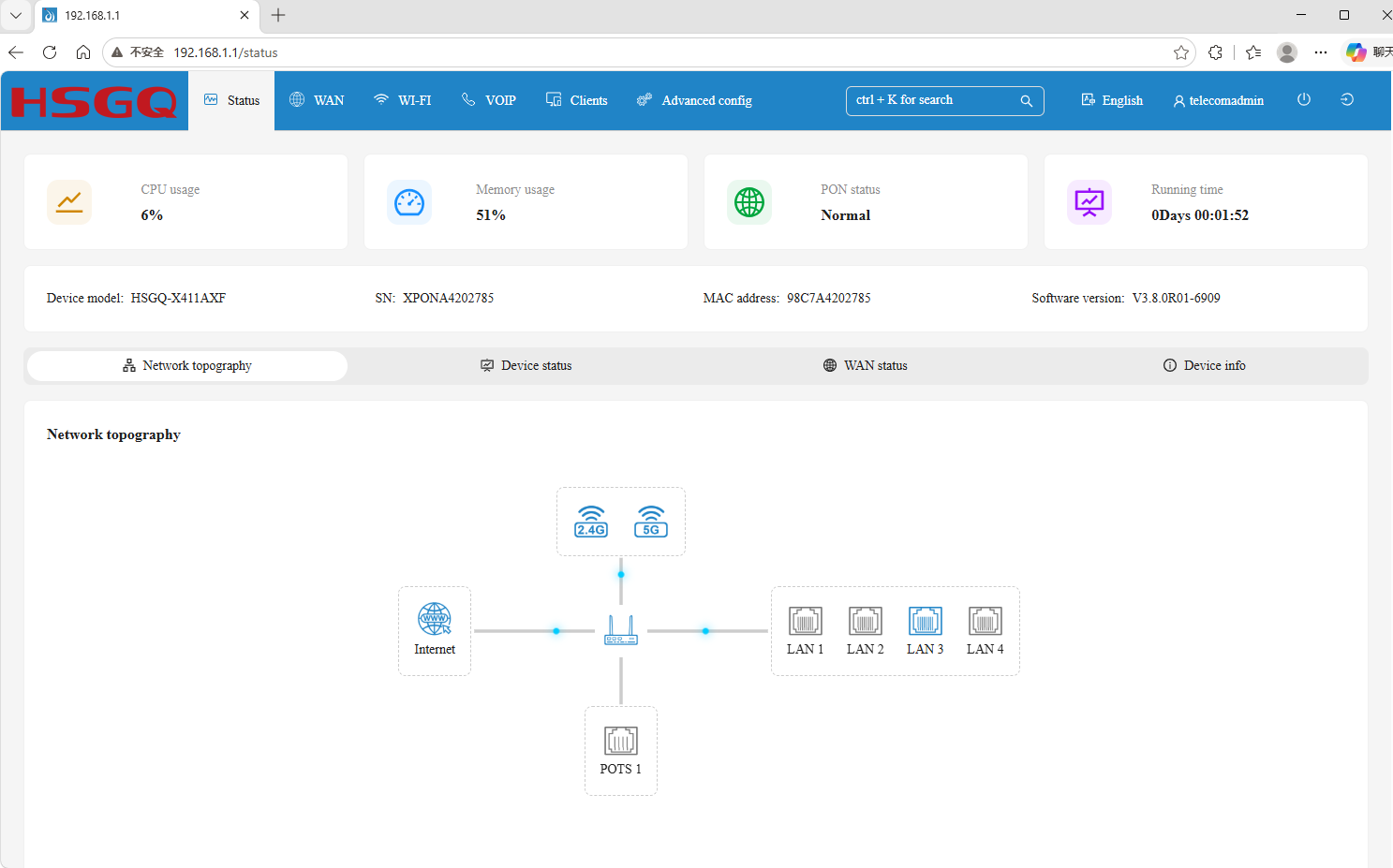
Step 2: Status / Dashboard
Upon successful login, you will be directed to the "Status" page, where you can view the device's current operational state at a glance:
1. System Operating Parameters: Monitor real-time metrics such as CPU usage, memory usage, PON port status, and the device's total running time.
2. Basic Device Information: Verify the device model, serial number (SN), MAC address, and firmware version (Software version).
3. Network Topology: View the connection status of various interfaces, including the Internet uplink, 2.4G/5G Wi-Fi, LAN ports 1–4, and the POTS voice interface.
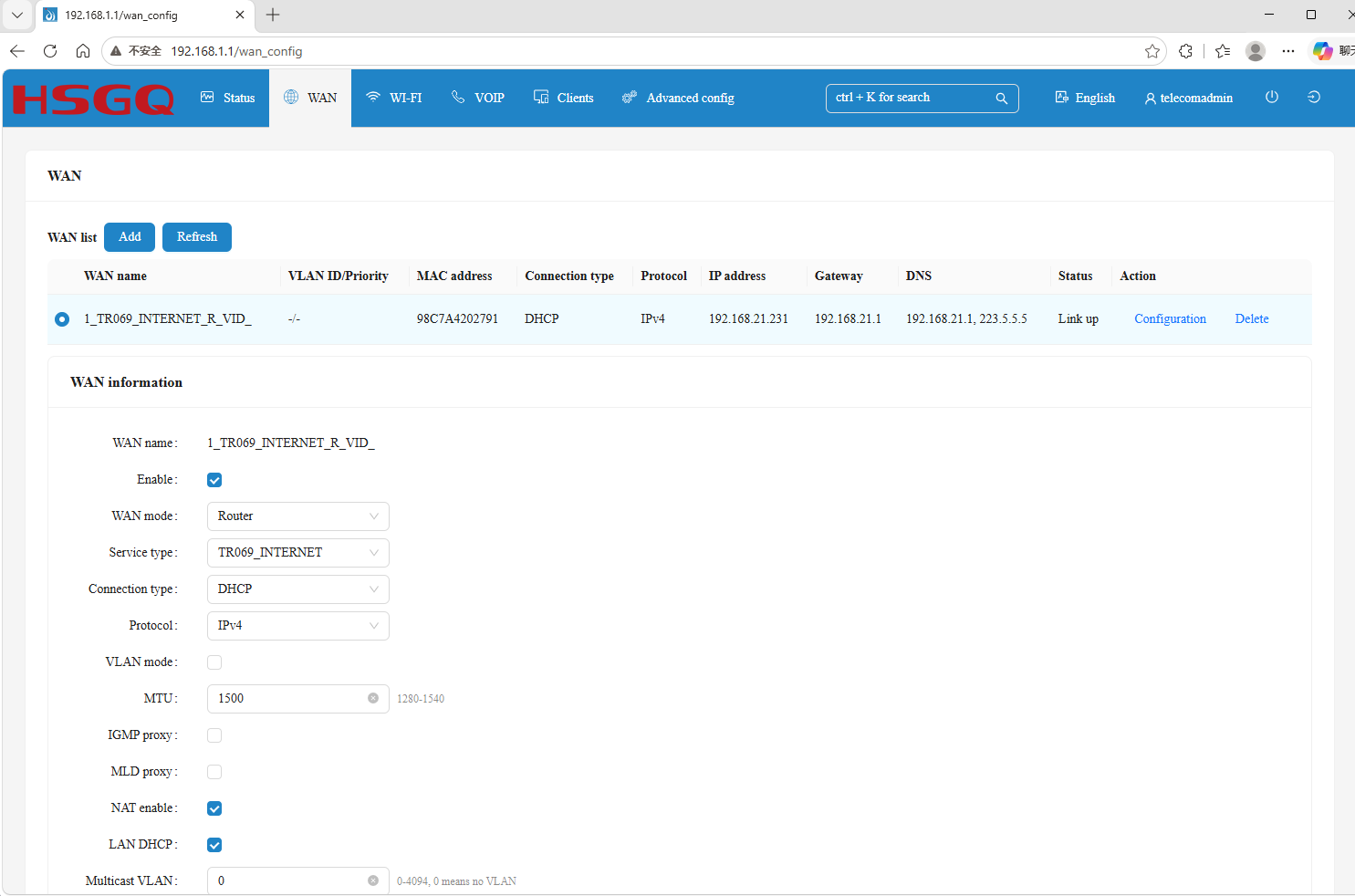
Step 3: WAN Network and Internet Access Configuration
Click "WAN" in the top menu to access network connection settings:
1. View and manage the WAN list: You can add new connection policies or modify existing ones within the "WAN list."
2. Detailed parameter settings:
WAN mode: Select the operating mode (e.g., Router mode or Bridge mode).
Service type: Select the appropriate service type (e.g., TR069_INTERNET).
Connection type & Protocol: Choose the internet access protocol and connection method (e.g., DHCP or PPPoE; supports IPv4).
Feature toggles: Enable NAT and the LAN-side DHCP service to ensure devices on your local network can access the internet.
Step 4: Wi-Fi Configuration
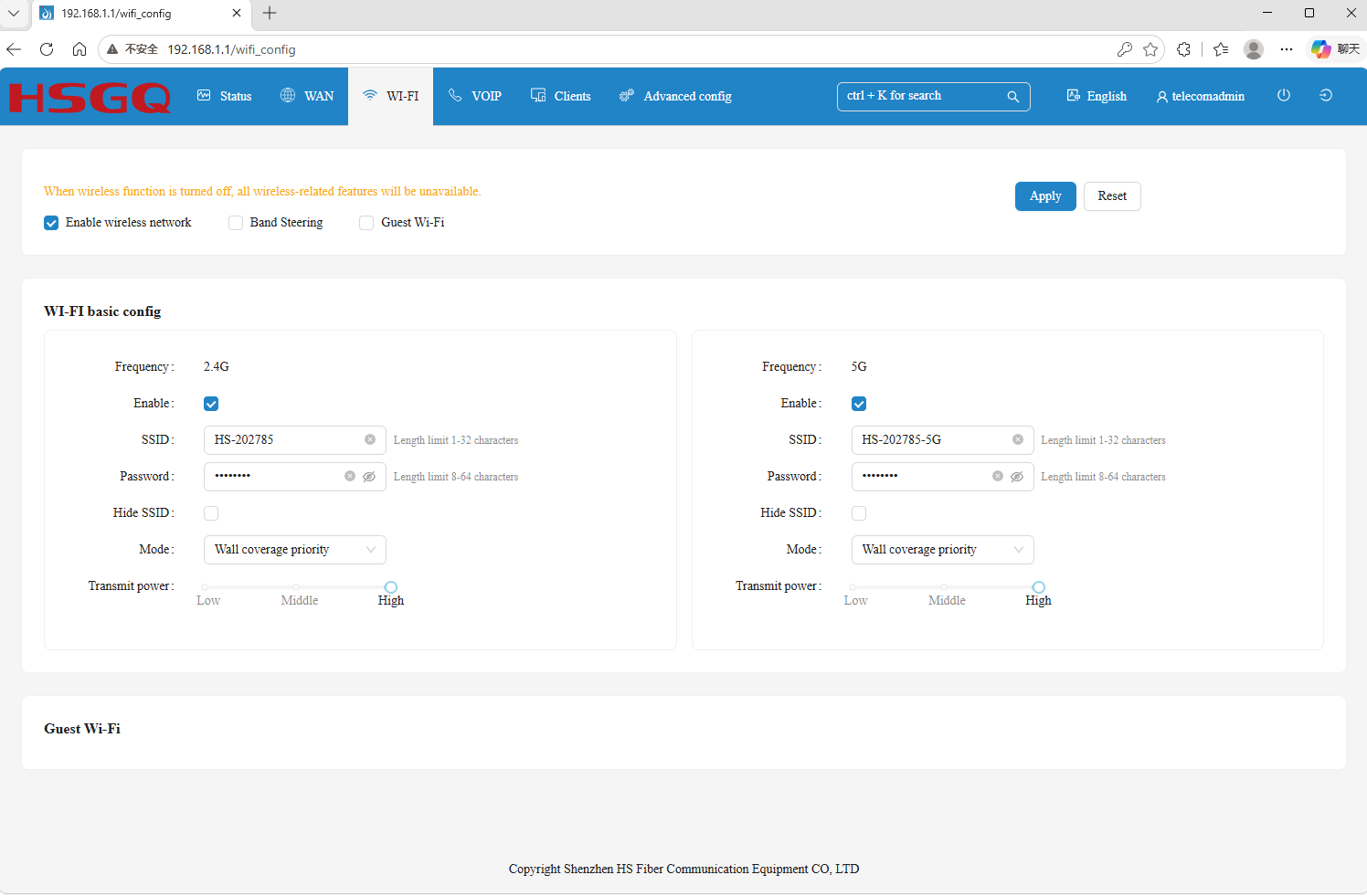
Click "WI-FI" in the top menu to access basic wireless settings:
1. Enable/Disable: Check "Enable wireless network" to turn on the Wi-Fi function.
2. Independent Band Configuration:
2.4 GHz & 5 GHz Bands: Configure the wireless network name (SSID, e.g., HS-202785) and connection password for each band separately.
Mode and Transmit Power: Select the operating mode (e.g., "Wall coverage priority") and adjust the transmit power (Low/Middle/High).
3. Additional Wireless Features: Supports Band Steering (combining both bands into a single network) and Guest Wi-Fi configuration.
Step 5: VoIP Configuration
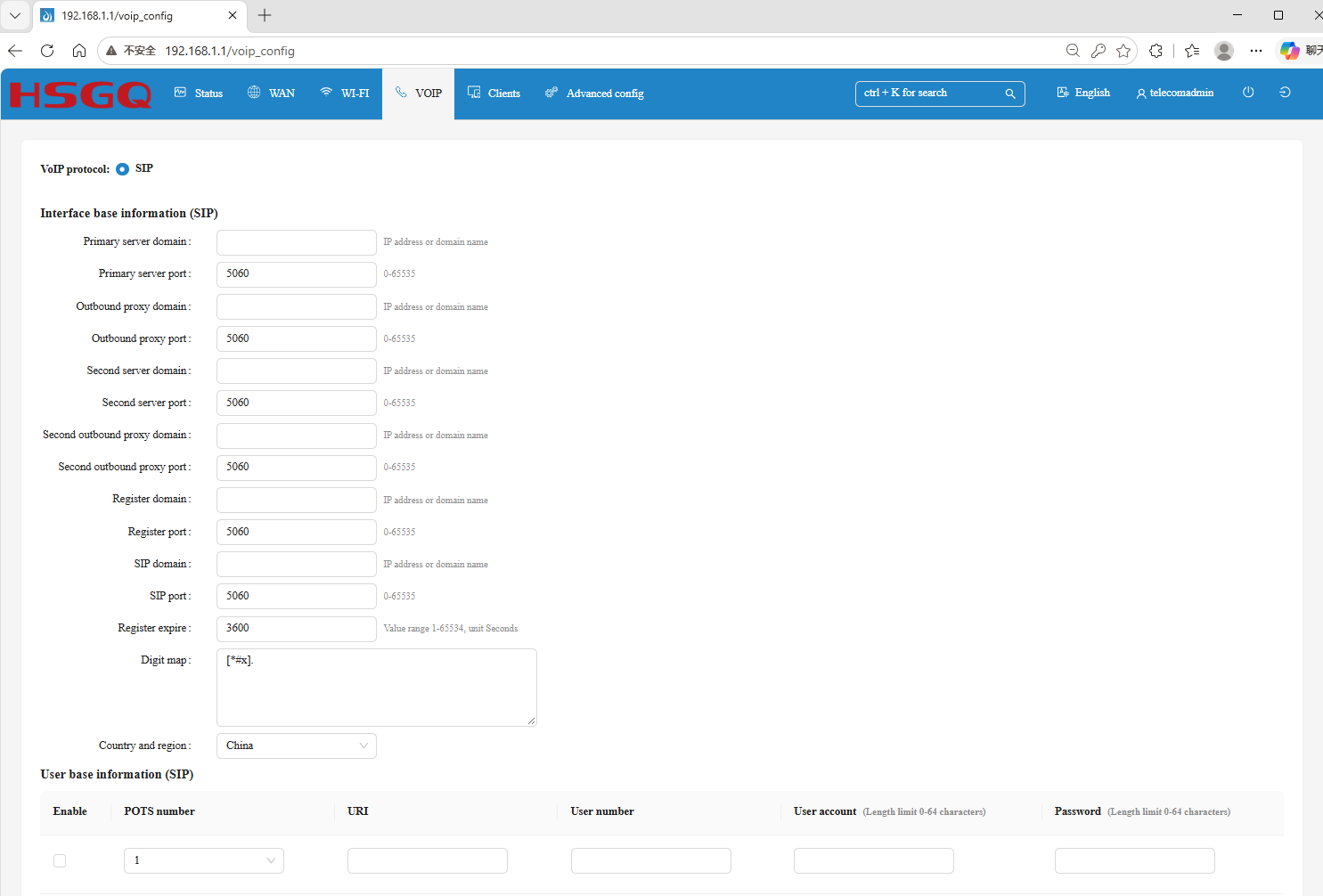
Click "VOIP" in the top menu to configure SIP telephony settings:
1. Server Information: Configure the primary/secondary SIP server domain(s), port (5060), and registration timeout, among other parameters.
2. User Account: Assign a URI, user account, and password to each physical POTS telephone interface to enable IP telephony functionality.
Step 6: Clients Management
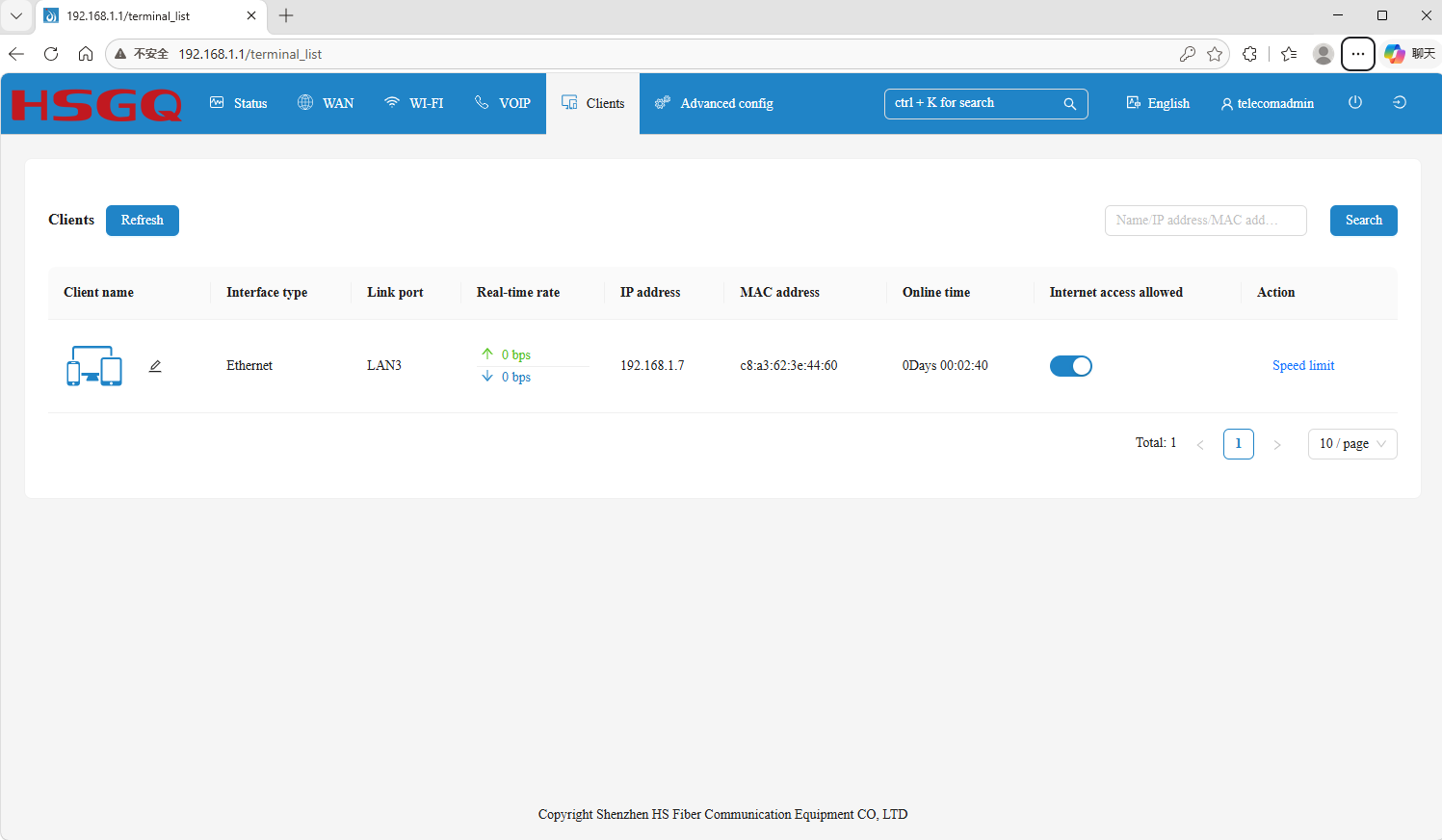
Click "Clients" in the top menu to view connected devices:
1. Device List: Displays a real-time list of all currently connected devices, including their connection type (Interface type: Ethernet/Wi-Fi), connection port (e.g., LAN3), IP address, and MAC address.
2. Client Control:
Network Access Toggle: Use the "Internet access allowed" switch to directly control whether a specific device is permitted to access the internet.
Speed Limiting: Click "Speed limit" to restrict the upload/download bandwidth for a specific device.
Step 7: Advanced Configuration
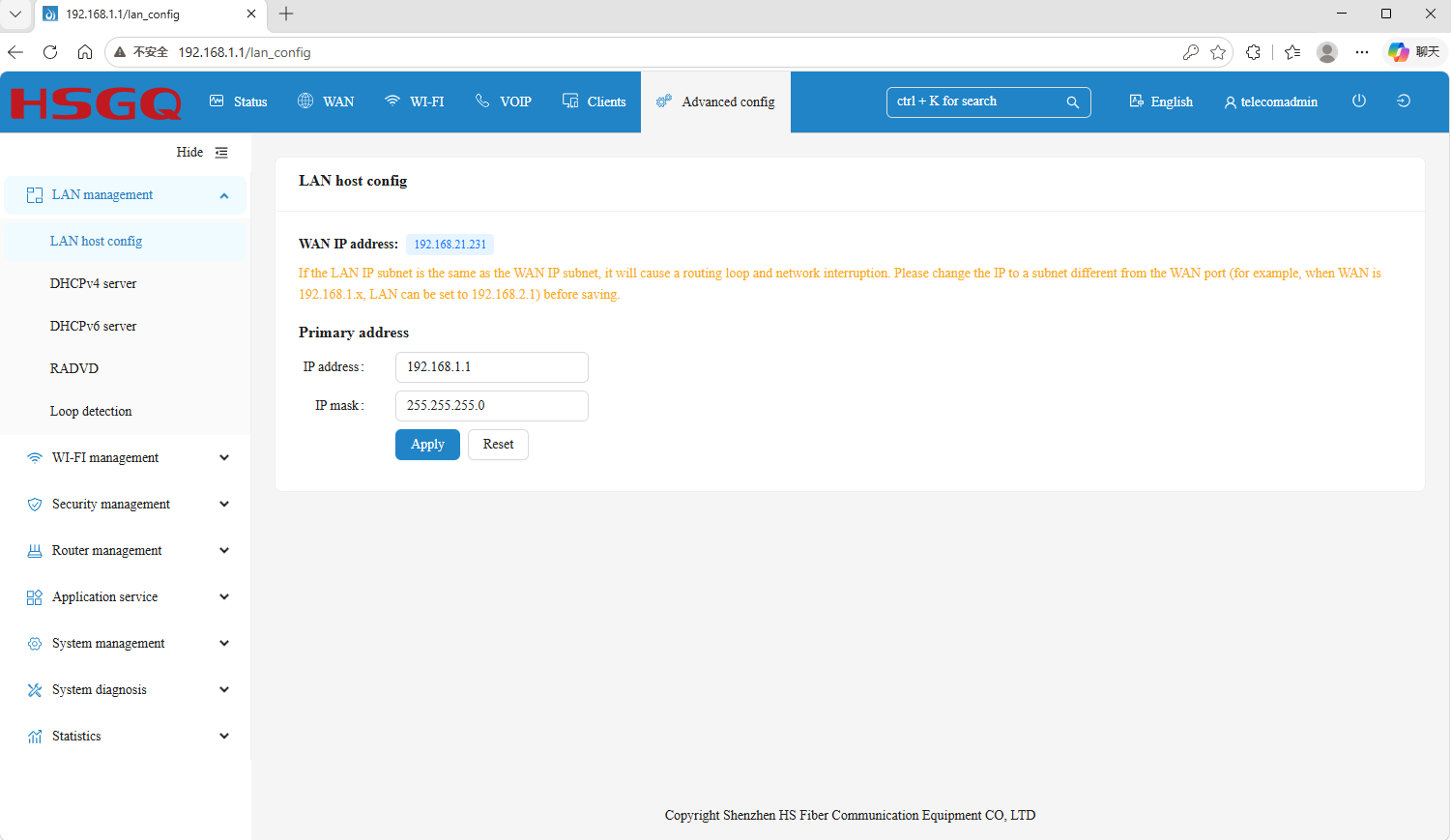
Click "Advanced Config" in the top menu to expand the sidebar for in-depth settings:
1. LAN Management: Navigate to "LAN host config" to configure the LAN gateway IP (default: 192.168.1.1), subnet mask, and DHCP service parameters.
2. Nearby Wi-Fi Analysis: Go to "Wi-Fi Management" -> "Nearby Wi-Fi" to view information about surrounding Wi-Fi signals—including frequency bands (2.4G/5G), channel distribution, and signal strength (RSSI)—helping you select the channel with the least interference.
3. Other Advanced Sections: These include Security, Router Management, Application Services, System Management, and System Diagnosis tools.
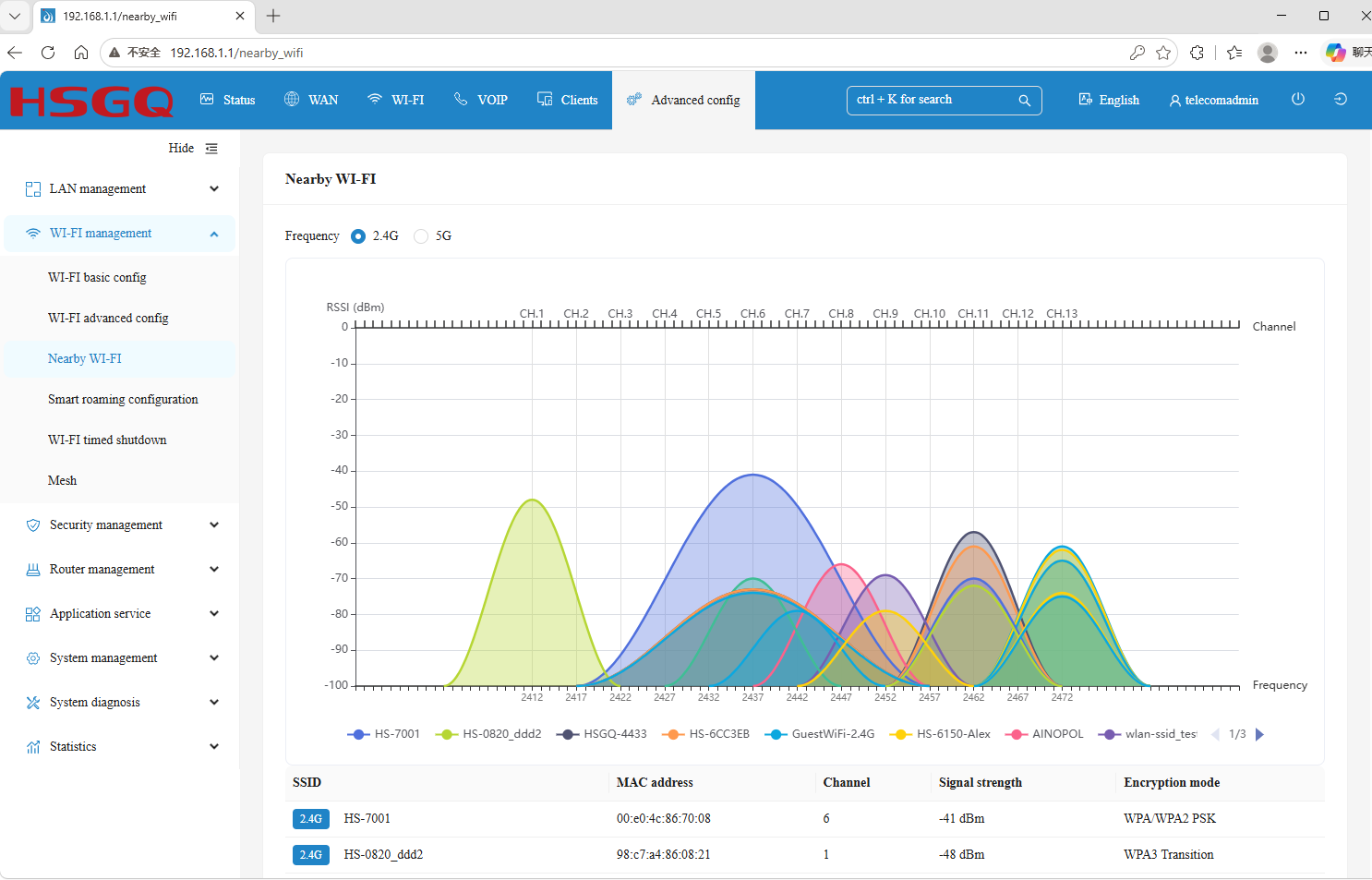
Streamline Your FTTH Operations with HSGQ Web Management. Managing and optimizing your fiber broadband connection shouldn't be a hassle. With HSGQ’s comprehensive web interface, network administrators and users can quickly check network topology status, configure WAN/LAN settings, adjust Wi-Fi coverage, and troubleshoot interference in real time. Features like nearby Wi-Fi channel scanning and individual client speed controls empower ISPs to deliver reliable service quality while reducing on-site maintenance costs.
Looking for reliable, easy-to-manage GPON/EPON/XPON devices and high-performance optical networking equipment for your projects? Contact our sales team today to request product datasheets, samples, or inquiry details!